

Think about the last time you searched for a plumber, a coffee shop, or a dentist on your phone. You probably did not scroll through ten blue links. You looked at the map, scanned a few names, checked the stars, and tapped call or directions. That tiny block of results is where local customers make decisions, and the thing that controls it is your Google Business Profile.
The good news is that Google Business Profile optimization is free, and most of your competitors do it badly. Many profiles are half filled in, packed with the wrong categories, or abandoned for years. A profile that is complete, accurate, and active stands out quickly.
This guide walks you through the whole process in plain language. You will learn how Google ranks local results, how to claim and verify your listing, how to fill in every field the right way, how to earn and answer reviews, and how to measure what is working. If you are still building the foundation of your local visibility, it also helps to read our guide to local SEO for small businesses alongside this one, because your profile works best when your website and listings support it.
Key Takeaways
- Verify your profile first. An unverified profile cannot show its full information to customers.
- Your primary category is the strongest ranking lever you control, so choose it with care.
- Use your real business name. Adding keywords to it can get your profile suspended.
- Reviews matter for both ranking and trust, so ask for them often and answer every one.
- Keep your hours, services, photos, and posts fresh. An active profile beats a perfect but abandoned one.
- Check your Performance data monthly and adjust based on calls, direction requests, and website clicks.
What Is Google Business Profile Optimization and Why Does It Matter?
What a Google Business Profile Is
A Google Business Profile is the free listing that appears when someone searches for your business name or for a service near them. It shows up in Google Search, in Google Maps, and in the local pack, which is the group of three businesses displayed with a map above the regular results. It can also appear as a panel on the right side of the search page when someone looks up your brand directly.
The profile holds your business name, address or service area, phone number, hours, website, photos, reviews, services, and posts. You manage all of it from your own dashboard, and Google pulls the information into search and maps automatically. You may still see it called Google My Business, which was the old name for the same thing.
What Optimization Actually Means
Optimization means making your profile complete, accurate, active, and trustworthy. Complete means every relevant field is filled in. Accurate means the details match what customers find in real life, including your hours and address. Active means you add photos, posts, and replies on a regular basis. Trustworthy means you have real reviews from real customers and you respond to them like a professional.
None of this is a trick. Google wants to show people the best match for what they need, and a well maintained profile gives it more confidence that you are that match.
Why It Matters for Small Businesses
For a small business, the profile is often the first impression. A customer may see your reviews, photos, and phone number before they ever visit your website. Many people never click through to a site at all. They call, request directions, or send a message straight from the listing.
It is also one of the cheapest marketing assets available. There is no ad spend, no monthly fee, and no technical skill required. If you are deciding where to put your time and budget, our comparison of SEO vs PPC shows why free, high intent channels like this one deserve attention early.
How Google Ranks Local Results
Relevance, Distance, and Prominence
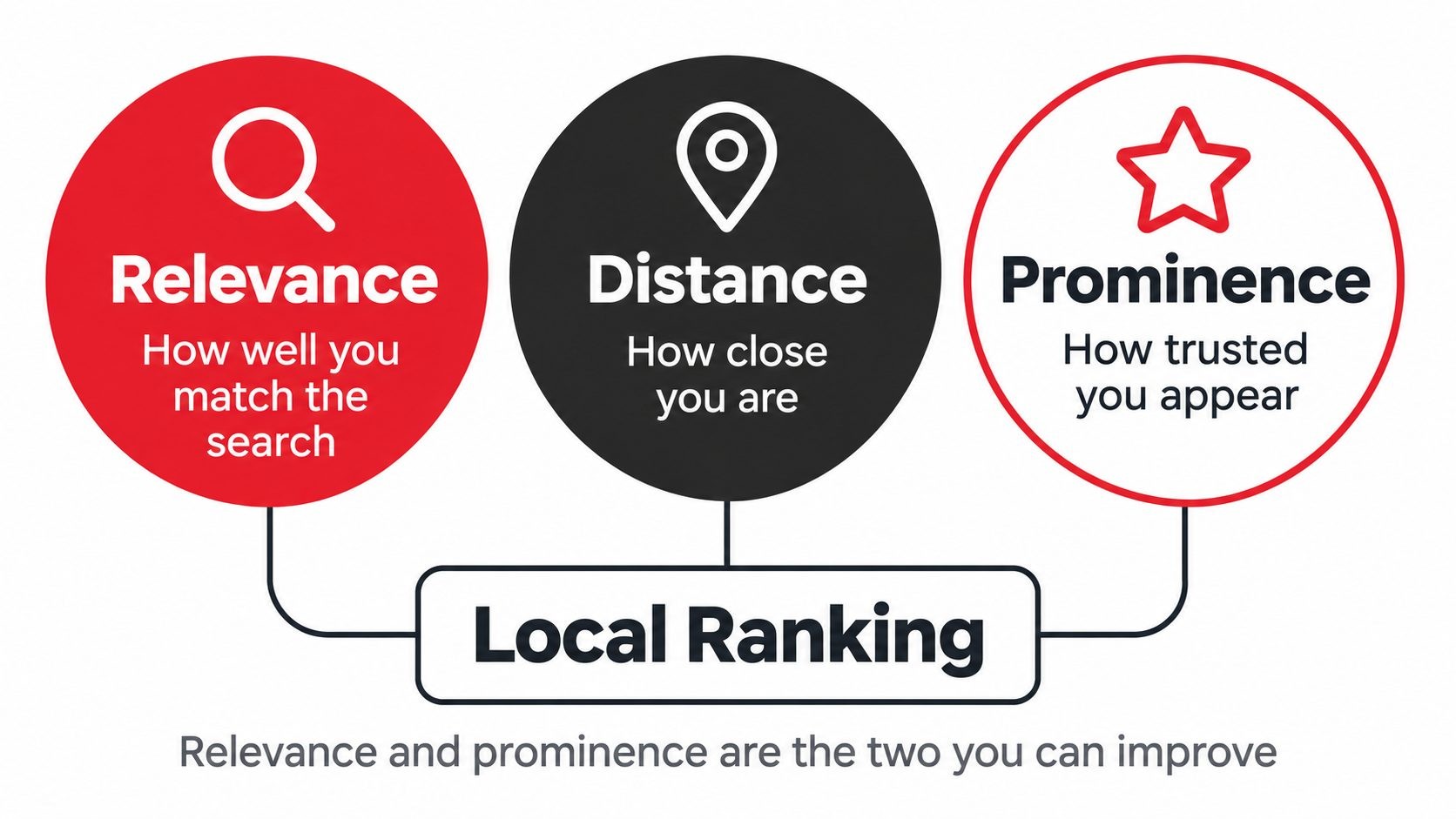
Google says local results are based mainly on three factors: relevance, distance, and prominence.
Relevance is how well your profile matches what someone searched for. If a person types "emergency plumber," Google looks for profiles that clearly say they are plumbers who handle emergencies. Your categories, services, and description all feed this signal.
Distance is how far your business is from the searcher or from the location named in the search. If someone searches without naming a place, Google uses what it knows about where they are.
Prominence is how well known and trusted your business appears to be. Google looks at reviews, ratings, links, articles, and general information it finds across the web. A business with many positive reviews and a strong web presence is usually seen as more prominent.
In practice, these three factors work together. A business that is slightly farther away can still outrank a closer one if its profile is more relevant and its reviews are stronger. That is why a well optimized profile can beat a bigger competitor down the street.
What You Can and Cannot Control
You cannot move your shop closer to a customer, so distance is mostly out of your hands. What you can change is relevance and prominence. You control your categories, descriptions, and services, which shape relevance. You also influence prominence by earning reviews, keeping your information consistent across the web, and building a solid website.
That is why the rest of this guide focuses on those two areas. Every step below either makes your profile clearer to Google or makes it more convincing to a customer.
Step 1: Claim, Create, and Verify Your Profile
Check Whether a Profile Already Exists
Before you create anything, search for your business name and city on Google and Maps. Google often builds listings automatically from public data, so a profile may already exist even if you never made one. If it does, you should claim it instead of creating a second one, because duplicates confuse customers and can cause problems later.
If you find a listing with the wrong details, look for the option to claim or manage it. Do not ignore it, because someone else could request ownership.
Create or Claim It
If nothing exists, sign in with a Google account that your business controls, not a personal account that only one employee can access. Add your business name, choose a category, and enter your address or service area. Add a phone number and a website if you have one.
Pick the right business type. If customers visit you at a physical location, add the address. If you travel to customers and do not serve people at your location, set up a service area instead and hide the address.
Verify It
Verification proves you are connected to the business. Google offers several methods depending on your business type, such as a postcard with a code, a phone call or text, an email, or a short video showing your location and equipment. Follow the steps on Google's help page to verify your business on Google and choose the option offered to you.
If you choose video, record a continuous clip that shows the street, your signage, your tools or storefront, and proof that you can access the business. Do not cut or edit it. After verification, give yourself a few days for everything to appear on Search and Maps.
Step 2: Get the Basics Right
Business Name Rules
Use the real name customers see on your sign, invoices, and website. Do not add keywords, locations, or slogans to try to rank higher. A name like "Best Cheap Plumber Dallas Emergency 24 Hours" instead of "Smith Plumbing" is against Google's rules and is one of the fastest ways to get a profile suspended or edited without warning.
Google's own page on guidelines for representing your business explains what is allowed. Read it once before you fill anything in, because it saves time later.
Address or Service Area
If you have a storefront, office, or any location where customers meet you in person, enter the exact address. Make sure it matches the address on your website and other listings.
If you run a service-area business, such as a mobile detailer, a locksmith, or a cleaning company, you can hide your street address and list the cities or regions you serve instead. Keep your service area realistic. Listing fifty cities you never visit does not help and can look spammy.
Phone, Website, and Hours
Use a local phone number whenever you can, and keep the same number everywhere online. For the website link, point customers to the page that best fits the profile. A single location business can use the homepage. A business with several locations should link each profile to its own local landing page.
Set your regular hours with care, because wrong hours are one of the most common reasons customers leave bad reviews. Update them any time they change, even for short periods.
Special Hours and Holidays
Add special hours for holidays, events, and seasonal changes before they happen. A customer who sees "Closed" on a day you are open will go to a competitor. A customer who sees clear holiday hours will trust you more. Set a reminder at the start of each quarter to review the next few months.
Step 3: The Full Optimization Checklist
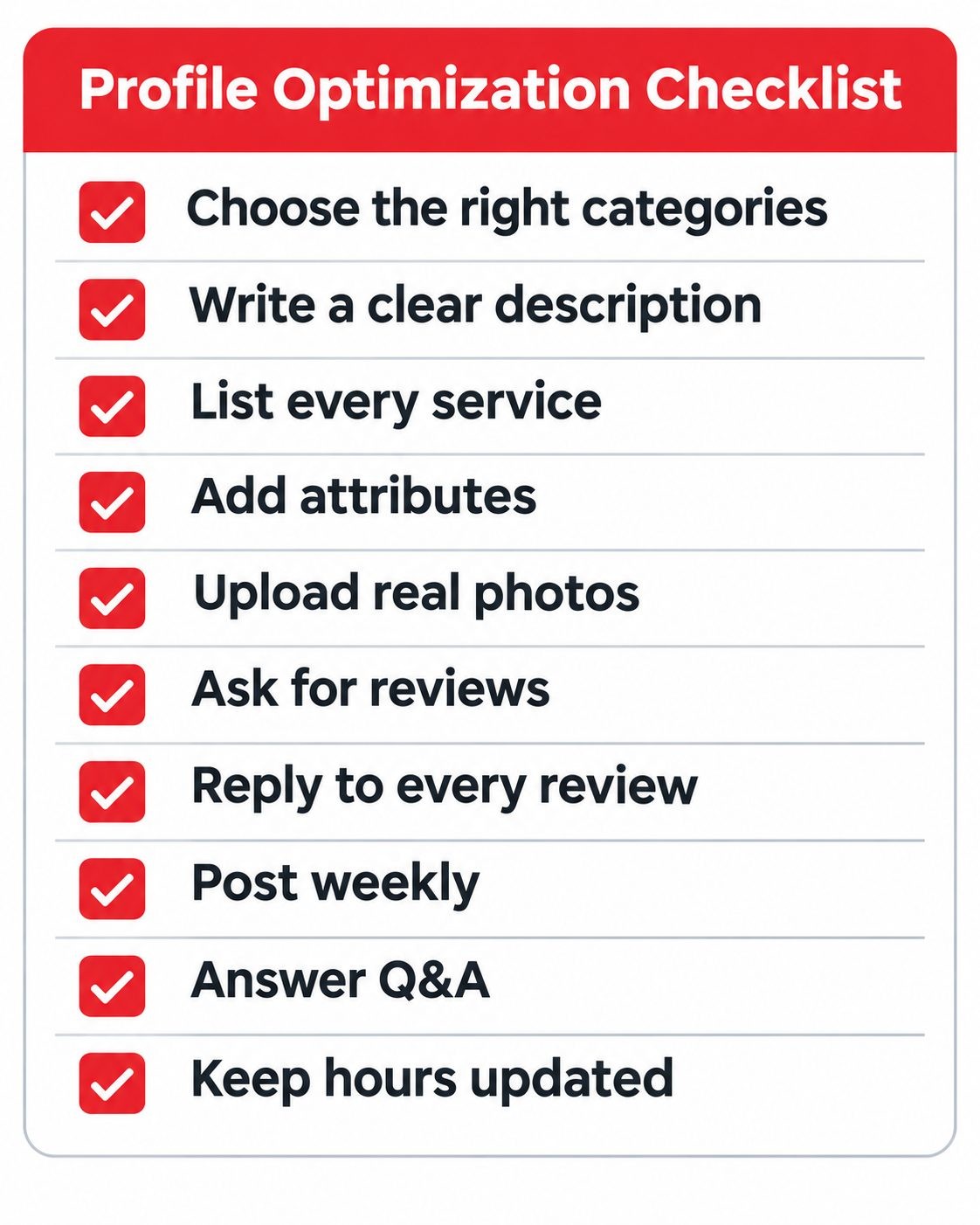
This is where most of the real work happens. Work through each item below and your profile will be ahead of most local competitors.
Primary and Secondary Categories
Your primary category tells Google what your business is. It is the single most influential field on your profile, so choose the most specific option that describes your main service. If you are a family dentist, pick "Dentist" or a more specific option such as "Family dentist" if it is available, not a broad term.
Then add secondary categories for other things you genuinely do, such as "Cosmetic dentist" or "Emergency dental service." Add only the ones that apply. Adding unrelated categories dilutes your relevance and can make your profile look less focused.
A simple way to choose is to look at the top three businesses that rank for your target search and see what categories they use. Many tools and extensions can show you these. Copy the ones that fit, but do not copy ones that do not describe your real work.
Here is a quick example. A bakery that sells wedding cakes might choose "Bakery" as its primary category, then add "Wedding bakery" and "Custom cake shop" as secondary ones. That tells Google it fits three different searches without claiming anything untrue. Review your categories every few months, because Google adds new options and retires old ones, and a more specific choice may become available.
Business Description
You get 750 characters, and only the first line or two show before the "more" link, so lead with the most important details. Say who you are, what you offer, where you work, and what makes you different. Write like a person, not a keyword list.
A strong description might say that you are a family owned heating and cooling company serving a specific city, that you handle repairs, installations, and maintenance, and that you offer same day service. Mention your main services and your area naturally.
Avoid links, phone numbers, special characters, and promotional language like "best price" or "limited time offer." Google's guidelines do not allow them in the description, and they add nothing for the reader.
Services
The services section lets you list each thing you do, with an optional short description and price. Add every real service, using the words customers use when they search. A hair salon might list haircuts, balayage, color correction, and bridal styling instead of a single line that says "hair services."
Each service name and description gives Google more context about what you do, which improves relevance. It also helps customers quickly confirm that you offer what they need.
Products and Menus
If you sell physical products, you can add them with photos, descriptions, and prices. Restaurants can add a menu link or full menu items. Retail shops can show best sellers.
Use clear photos and honest descriptions. Keep prices current, because outdated prices create frustration and can lead to negative reviews.
Attributes
Attributes are small labels that describe your business, such as "wheelchair accessible entrance," "free Wi-Fi," "online appointments," "women owned," "outdoor seating," or "onsite services." The options you see depend on your category.
Fill in every attribute that honestly applies. Customers often filter or decide based on these details, and some of them, such as accessibility and payment methods, can be the deciding factor. Review them every few months, because new options appear over time.
Photos, Logo, and Cover Image

Photos are one of the most influential parts of a profile, and customers look at them closely. Upload a clear logo, a cover photo that represents your business, and a mix of exterior, interior, team, product, and work photos.
Use real photos of your actual business. Stock images look generic and do not build trust. Take pictures in good light, show your signage so people can recognize the place when they arrive, and include before and after shots if your work is visual. Aim to add a few new photos every month so the profile always looks active.
A small tip that helps is to name your photo files clearly before uploading, such as "family-dentist-reception-area.jpg" instead of "IMG_4821.jpg." It is not a major ranking factor, but it keeps your own library organized.
Video
Short videos can show a tour, a service in action, or a quick introduction from the owner. Keep them brief and clear, and make sure they are real footage from your business. Video is not required, but it gives you another way to stand out, especially in industries where people want to see the work or the team before they commit.
Get More Google Reviews
Reviews influence both rankings and trust. A business with fifty recent, detailed reviews looks far more reliable than one with three old ones, even if the average rating is the same.
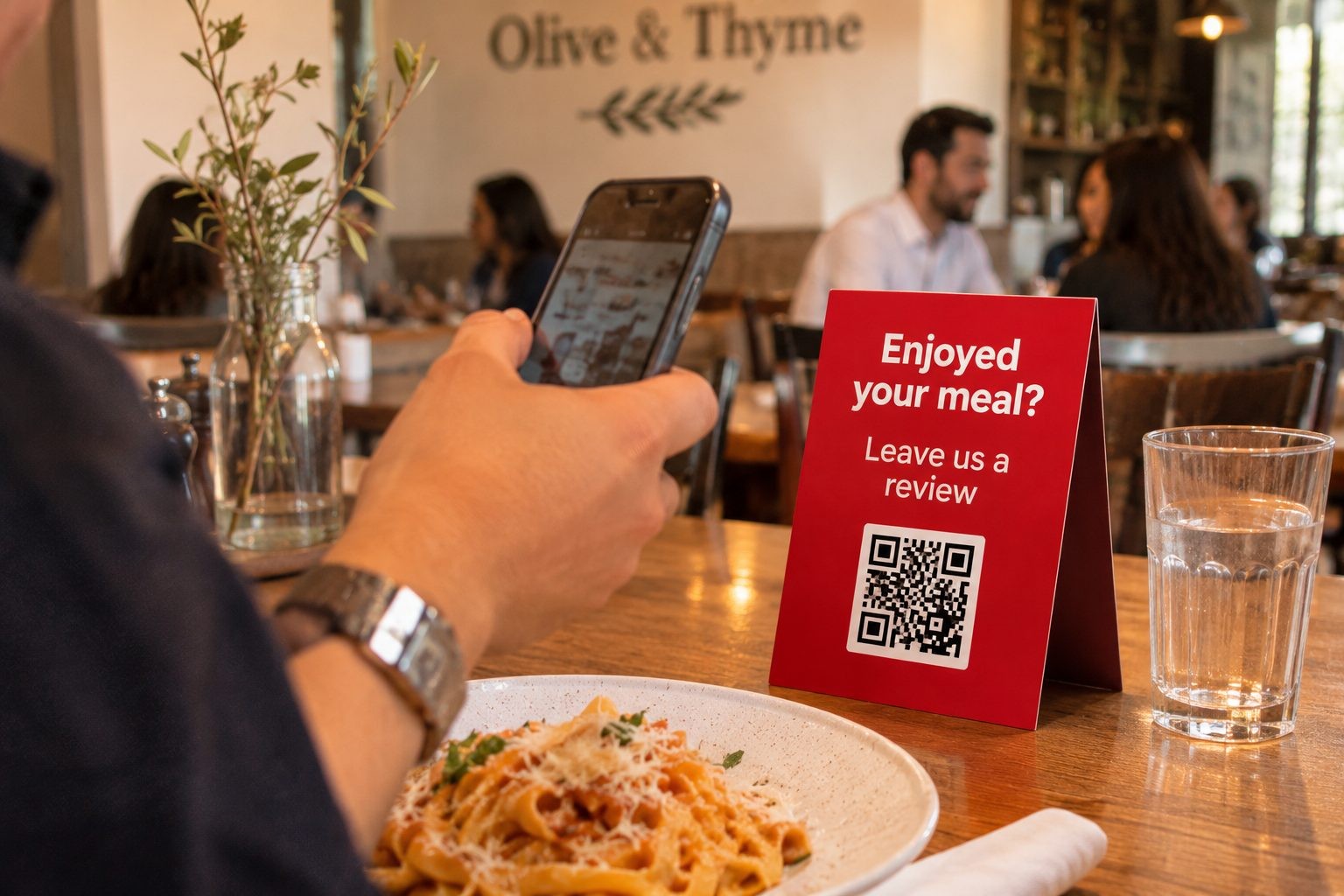
The easiest way to get more reviews is to ask at the right moment. Ask right after a successful job, a good meal, or a happy conversation, when the customer feels good about you. Send a direct review link by text or email, print a QR code on receipts or counters, or ask your team to mention it at checkout.
Follow Google's policy for managing customer reviews. Do not offer discounts or gifts in exchange for reviews, do not review your own business, and do not buy reviews. Google can remove them and may penalize your profile.
It also helps to collect and show feedback in more than one place. A review platform like Clutchpilot lets customers rate and review businesses, and it gives you another trusted profile that people can find when they research you. Use it alongside Google, not instead of it.
Build review requests into your normal process so they happen without extra effort. A dentist can add the link to the appointment follow up email. A contractor can send it with the final invoice. A restaurant can place a small QR card at the table. When the request becomes a habit, your review count grows steadily and your newest reviews always stay recent, which matters because customers trust fresh feedback more than old praise.
Encourage details too. A review that says "fixed our leaking water heater the same day in Plano" does more for relevance and trust than a plain five stars. You cannot script what people write, but you can gently ask them to mention what they hired you for.
Here is a simple review request you can adapt:
"Thanks again for choosing us today. If you had a good experience, would you mind leaving a quick Google review? It helps other people in our area find us. Here is the link: [your review link]"
Respond to Every Review
Responding shows that you pay attention. It also gives you a chance to add helpful keywords naturally, such as the service you provided, and to show future customers how you handle problems.
For a positive review, thank the person by name, mention something specific, and invite them back. For a negative review, stay calm, apologize where it is fair to, explain what you will do, and offer to continue the conversation offline. Do not argue or share private details. Many people read your replies to negative reviews more closely than the reviews themselves.
Google Posts
Posts let you share updates, offers, events, and news directly on your profile. Use them for seasonal promotions, new services, special hours, or helpful tips. Add a clear photo and a short button such as "Call now," "Book," or "Learn more."
Posting once a week is a realistic goal. It shows that the business is active, and it gives customers fresh reasons to contact you. Keep each post short and specific, and avoid copying the same text every time.
Questions and Answers
The questions section lets anyone ask something publicly about your business. Check it often, because wrong or unanswered questions can hurt you. Answer promptly and clearly.
You can also add your own common questions and answers, such as parking details, whether you take walk-ins, or what areas you serve. This saves time on calls and gives customers confidence before they visit.
Messaging, Calls, and Booking Links
Depending on your business, you can turn on messaging so customers can contact you from the profile, add appointment or reservation links, and track call history. Only turn on messaging if you can reply quickly, because slow replies reflect badly on the business.
If you take bookings, add a direct booking link so customers can schedule in one tap. Fewer steps usually mean more completed bookings.
Align Your Website and Local Landing Page
Your profile and your website should tell the same story. Make sure your business name, address, phone number, hours, and service descriptions match on both. Add a map and your contact details to your site, and consider adding LocalBusiness structured data so search engines can read your information clearly. Google's documentation on local business structured data explains the format.
If you serve more than one city or run more than one location, build a separate page for each, with unique content about that area. Linking each profile to its matching page helps customers land where they expect and helps Google connect the two. If you want to check that those pages are technically healthy, a free tool like SEO Site Checker can scan a page for common issues such as missing titles, slow loading, and broken links.
A stronger website also supports your overall visibility online. Our guide on how to build an online presence for a small business covers the website, social, and content basics that make your profile more convincing.
Citations and NAP Consistency
NAP stands for name, address, and phone number. Citations are mentions of that information on other sites such as directories, maps, and industry listings. When your NAP is the same across the web, Google trusts it more. When it varies, for example "Street" in one place and "St." in another, or an old phone number on an old directory, it creates doubt.
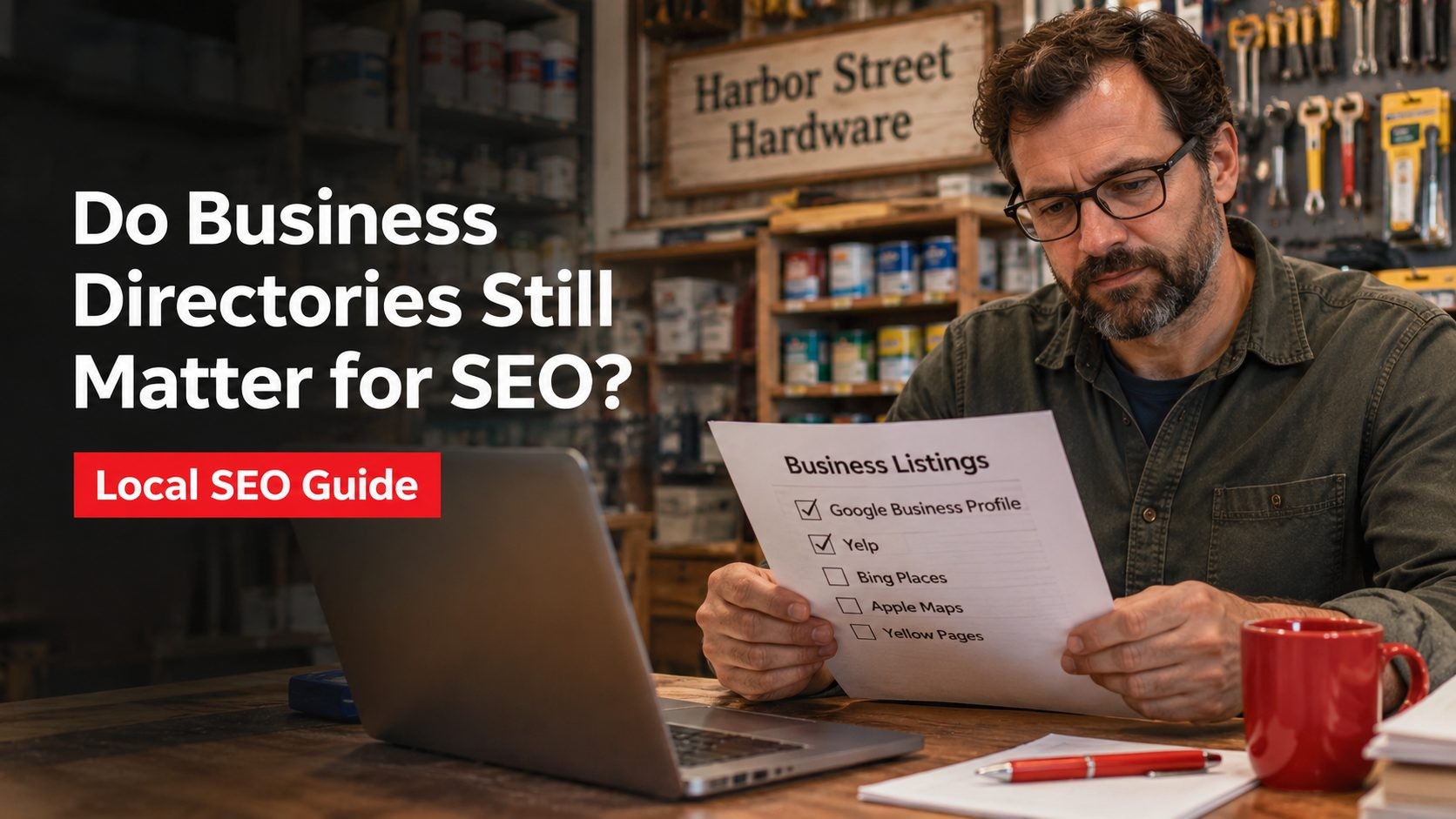
Run a quick audit by searching your business name and noting every listing you can find. Fix mismatches, remove duplicates, and claim the major directories that matter in your industry. You do not need hundreds of listings. A clean, accurate set of the main ones is enough to start.
Tips by Industry
Different businesses need different emphasis.
- Restaurants and cafes: Keep the menu and photos fresh, add reservation or ordering links, and respond to reviews about food and service quickly.
- Home services: Use service areas, show real project photos, and collect reviews that mention the type of job and the city.
- Medical and dental: Be careful with claims, list insurance and accessibility details, and make booking easy.
- Retail: Show products, update hours around sales and holidays, and use posts to highlight new arrivals.
Multi-Location and Service-Area Special Cases
If you have more than one location, each one needs its own profile with its own address, phone number, hours, and landing page. Do not create profiles for places where you do not have a real, staffed presence. Use a consistent naming style across locations, but follow Google's rules and do not add location names unless they are part of your actual branding.
For large numbers of locations, Google lets you manage them in groups and upload details in bulk. Assign clear owners for each profile so reviews and questions never sit unanswered.
Service-area businesses should hide the address if customers do not visit it, define the areas they actually serve, and avoid creating fake storefronts or virtual offices just to appear in more cities. That is a common reason for suspensions.
Suspensions, Duplicates, and Guideline Violations
A suspended profile can disappear from search and Maps, so it is worth knowing why it happens. Common causes include keyword stuffing in the business name, a virtual or fake address, a PO box, listing a business that does not operate at the location, changing too many core details at once, and having duplicate profiles for the same business.
If your profile is suspended, first read the message in your dashboard and compare your profile against Google's guidelines for representing your business. Fix the problem before you appeal, then submit the reinstatement request and include clear proof such as photos of your signage, a business license, or utility bills with your name and address. Be patient, because reviews can take several days.
For duplicates, search for your business name and address, then use the options on the listing to report or request a merge or removal. Keep the profile that has the reviews and history, and remove the extra one rather than letting both exist.
How to Measure Performance
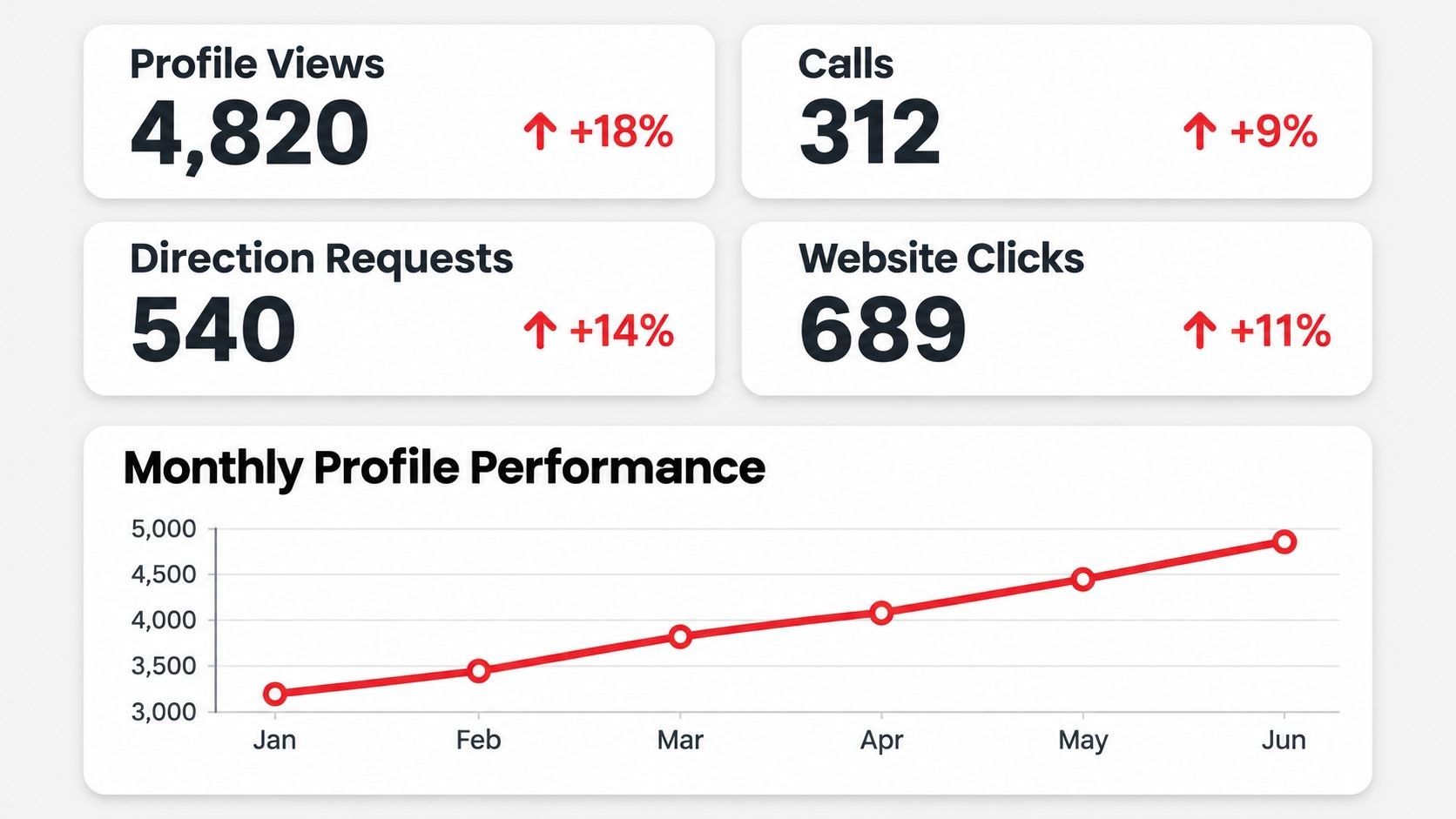
Your dashboard shows how people find and use your profile. Check it once a month and look for patterns.
- Search and Maps views: How many people saw your profile and where.
- Calls and direction requests: Strong signs of purchase intent.
- Website clicks: How many visitors came from the profile to your site.
- Search terms: The words people typed before they found you.
- Messages and bookings: If you use these features, track how many come from the profile.
To see how much traffic reaches your website from the profile, add UTM tags to the website link, such as ?utm_source=google&utm_medium=organic&utm_campaign=gbp. You can then find those visits in your analytics. If you have a rank tracking tool, check how you appear in the local pack for your main searches, because results can differ by neighborhood.
Do not judge results from a single week. Local searches change with seasons, holidays, and promotions, so compare each month with the same month last year when you can. Write down what you changed, such as a new category or a batch of new photos, so you can connect improvements to actions instead of guessing.
If calls drop, check hours and phone numbers first. If views drop, look at categories, recent reviews, and whether competitors have been more active.
Common Google Business Profile Mistakes
- Stuffing keywords into the business name. It risks suspension and looks spammy.
- Choosing the wrong primary category. It sends Google and customers the wrong signal.
- Ignoring reviews. Unanswered feedback tells customers you do not care.
- Leaving outdated hours. It causes wasted trips and angry reviews.
- Uploading no photos or only stock images. Real images build trust.
- Creating duplicate listings. They split reviews and confuse search.
- Buying or faking reviews. It can lead to removal and penalties.
- Linking to the wrong page. Send customers to the page that best answers their need.
- Abandoning posts and Q&A. Silence makes the business look closed.
- Letting someone else control the account. Always keep ownership with a business email.
A Simple Weekly and Monthly Routine
You do not need to spend hours every week. A short routine keeps your profile strong.
- Weekly: Reply to new reviews and questions, add one post, and upload a few photos.
- Monthly: Review your performance data, check hours and services, and look for duplicate or incorrect edits.
- Quarterly: Audit your citations, update holiday hours, refresh your description, and look at what competitors are doing.
Tools That Help
A few types of tools make this work easier. Review platforms and request tools help you collect and display feedback, and a directory like Clutchpilot gives customers another trusted place to find and rate you. Listing audit tools help you find inconsistent citations. Rank tracking tools show how you appear on the map for specific searches. For page checks, a free option like SEO Site Checker can review the landing page your profile points to. Google's own Performance dashboard remains the best place to see real activity on your listing.
You do not need all of these. Start with the free dashboard, then add tools only when a specific problem calls for one.
FAQs
Conclusion
Optimizing a Google Business Profile is not complicated, but it does take attention. Choose the right categories, keep your information accurate, earn and answer reviews, and stay active with photos and posts. Those three habits, accuracy, reviews, and activity, deliver most of the results.
Start today with a single task. Open your profile, check your primary category and hours, and fix anything that is wrong. Then work through the checklist above one section at a time. Small, steady improvements add up, and soon your business will be easier to find and easier to trust for every customer searching nearby.
No Tags
Comments (0)